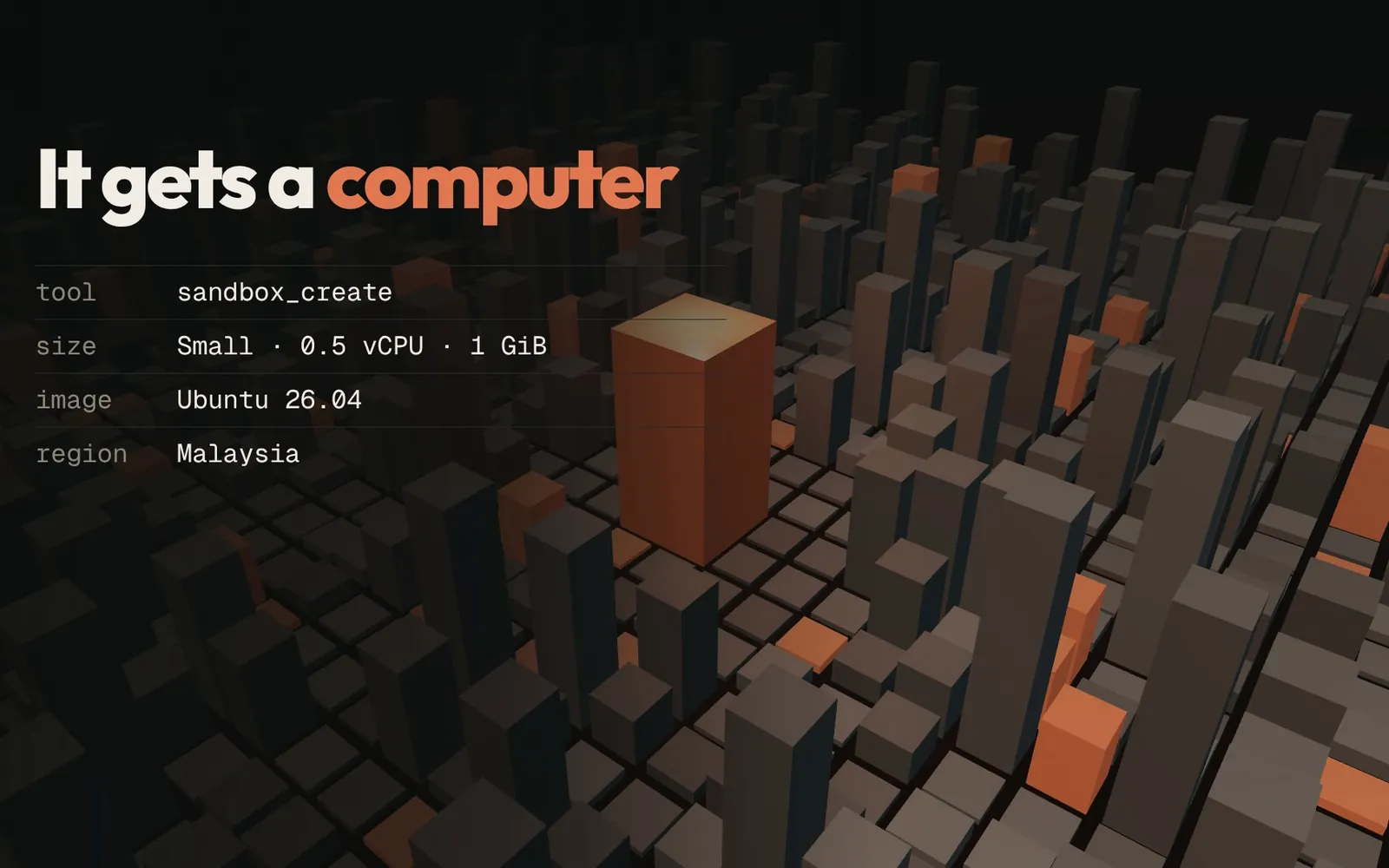
Ten real jobs What we texted it, and its computer doing the work.
$5 free credit, no card
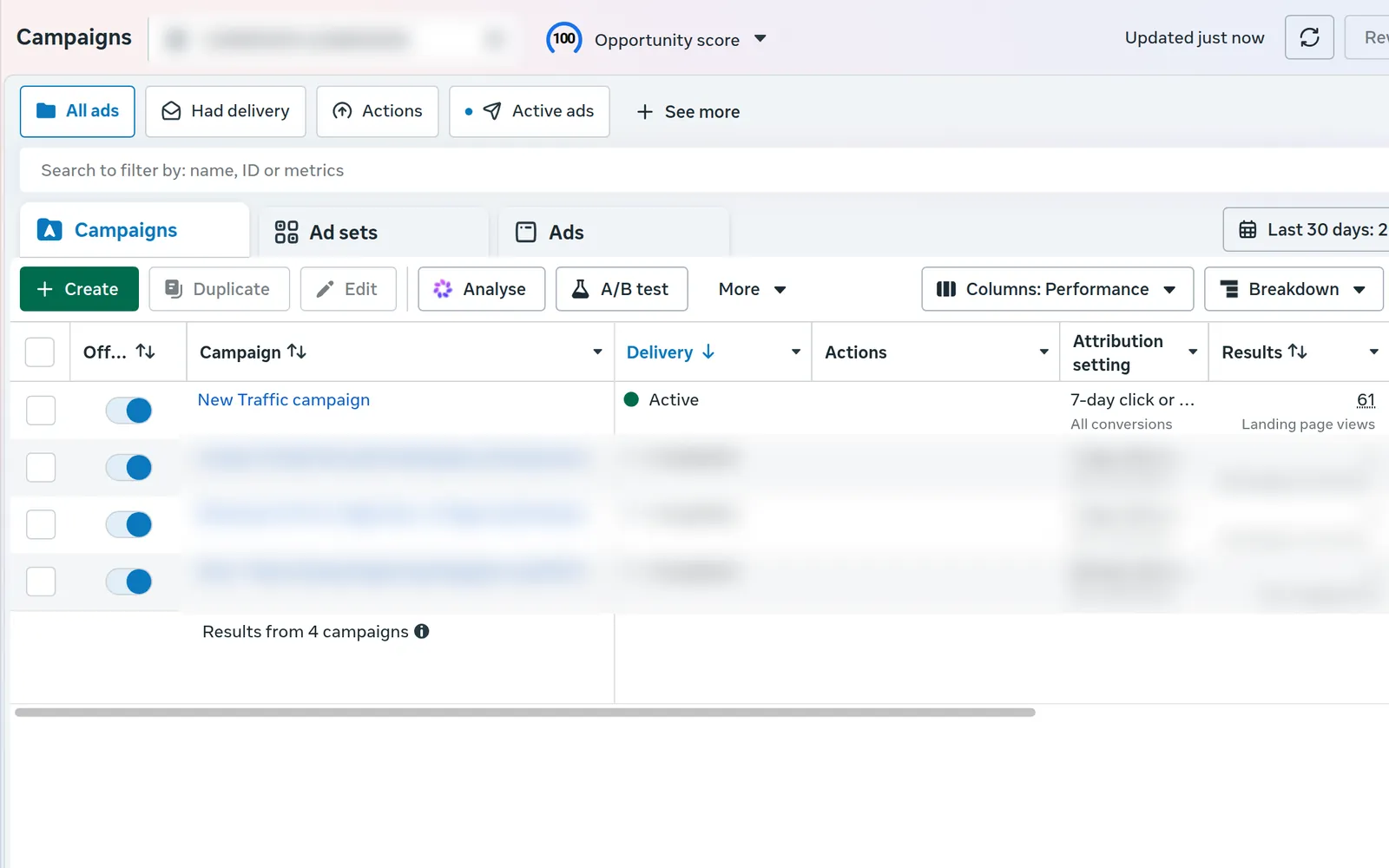
01 / 10 needs Ads Manager, signed in Real run · 20–22 Nov
Your agent Working You: I want to sell BoxCompute. Push one of my videos as a Meta ad.Agent: Your “kenapa kena subscribe” video did best on TikTok. I cut it to 23 seconds.The 23-second cut Vertical video, 0:23 You: Publish. Cheap test, RM10 a day.Agent: Published. Meta confirmed 1 campaign, 1 ad set and 1 ad.2 days in: 2,194 reached · 110 visits
Its computer · Ads Manager Live
Live view other campaigns blurred 02 / 10
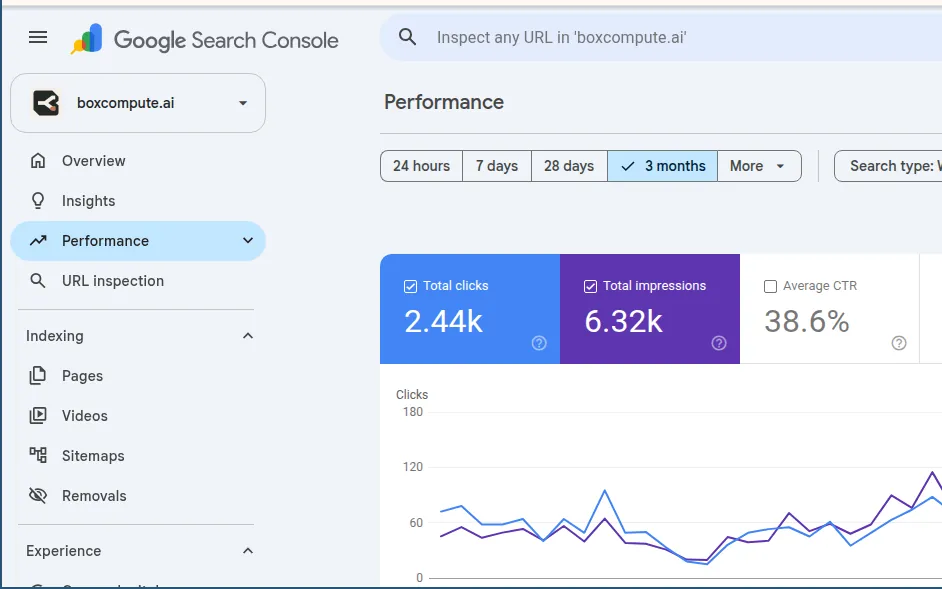
Checks your SEO. needs Google, signed in Real run · 19 Nov Your agent Working You: Search Console is open on my VM. How is boxcompute.ai doing?Agent: Last 3 months: 2.44k clicks, 6.32k impressions, average position 5.6.You: Submit the sitemaps and request indexing for the new pages.Agent: Sitemaps submitted. Indexing requested.You: Check it every morning.Agent: Scheduled: every day at 9:00.
Its computer · Search Console Live
Screenshot from the run boxcompute.ai 03 / 10
Turns a spreadsheet into a website. needs a web server + a public link Real run · 20 Nov Your agent Working You: Make a simple, nice catalog from this Excel. Get the photos from infitek.com.Equipment_List.xlsx Agent: Found photos for all 40 items. Building the page.You: After finish, put it online.Agent: The catalog is live. 40 items, with search and filters.2591d1f5….bxcpreview.site
Its computer · catalog · public link Live
The page it built client’s total blurred 04 / 10
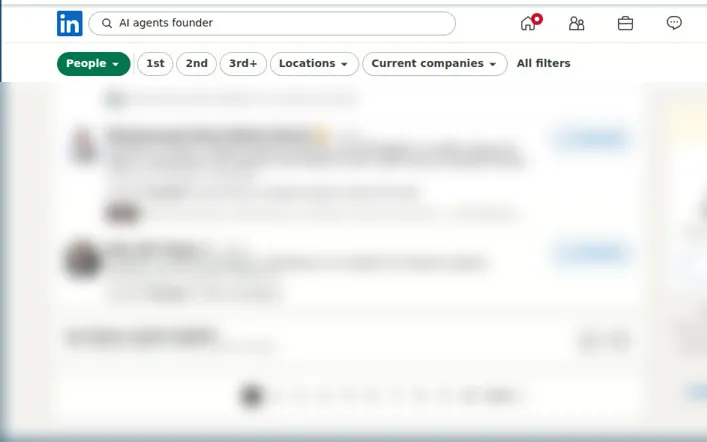
Finds you leads. needs LinkedIn, signed in Real run · 14 Nov Your agent Working You: Scroll LinkedIn and find me B2B leads for BoxCompute. Record your screen.Agent: Ran nine searches. Shortlisted 39 leads, each with an outreach angle.boxcompute-linkedin-leads.csv linkedin-leads-session.mp4 · 10:18 You: Run this every morning at 8.Agent: Scheduled: every day at 8:00.
Its computer · LinkedIn Live
Screenshot from the run names blurred 05 / 10 needs 8 CPUs to render Real run · 21 Nov
Your agent Working You: Try three.js, Remotion and HyperFrames. Make a high-energy promo video for boxcompute.ai. Use an XXL PC.Agent: You didn’t have an XXL VM, so I made one: 8 vCPU, 16 GB.rendering 1920×1080 Agent: Two videos done. The first is 33 seconds, with music and sound effects.promo · 0:33 · 1080p
Its computer · promo-video-xxl · 8 vCPU Live
Frame from the video 33 s · 1080p 06 / 10
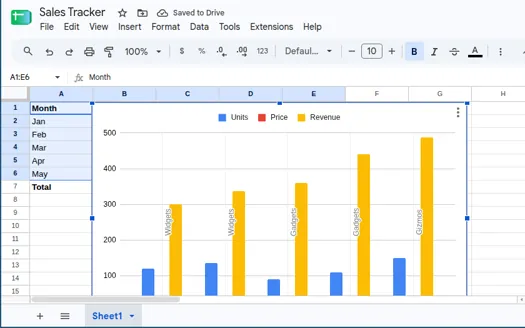
Works your Google Sheets. needs Google, signed in Real run · 12 Nov Your agent Working You: Go to my VM and work the Google Sheet. Record your screen and edit the video.typing formulas Agent: Built a sales tracker: 5 months, formulas, a total row and a chart.google-sheets-demo.mp4 · 70 s
Its computer · Google Sheets Live
Screenshot from the run sample data 07 / 10
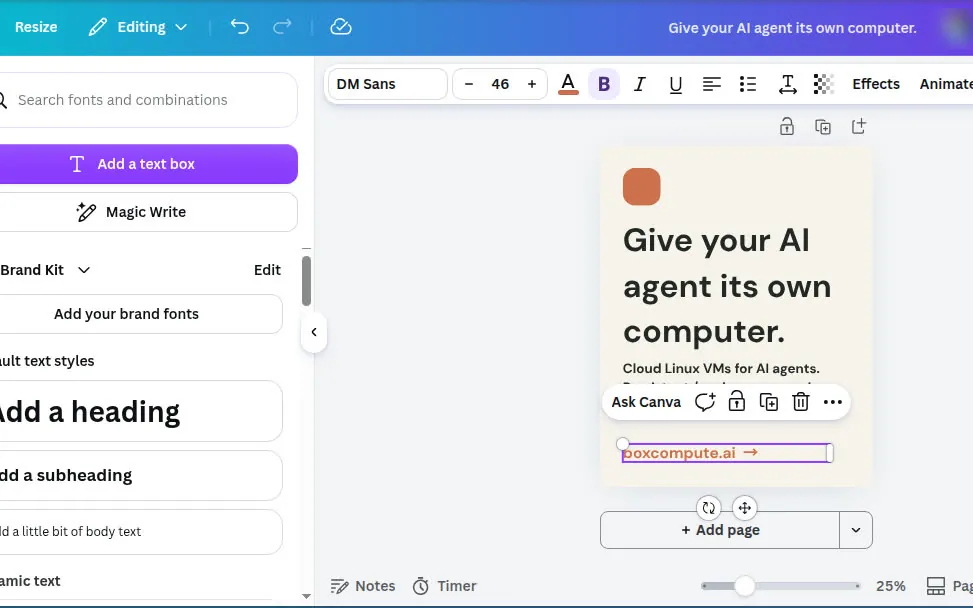
Uses Canva for you. needs a desktop with your apps Real run · 12 Nov Your agent Working You: I installed Canva on my VM. Play around with it and record your screen.Agent: Opening Canva. Designing a BoxCompute post.editing the headline · recording
Its computer · Canva Live
Screenshot from the run canva.com 08 / 10
Watches flight prices. needs a clock that runs at 9 Real run · 10 Nov Your agent Working You: Watch KUL to Jakarta fares every morning at 9. Tell me when it’s under RM300.09:00 · daily run Agent: Cheapest: Thu 18 Nov, RM294. That’s a buy signal.Agent: Best nonstop: AirAsia AK380 at 06:55. Nothing booked.
Its computer · fares.py · every day 09:00 Live
$ python3 fares.py --from KUL --to CGK
14 dates checked · 1 adult · one-way · MYR
Thu 18 Nov 294 ← cheapest
Mon 24 Nov 299
Sun 23 Nov 300
Tue 17 Nov 302
at or under 300: BUY
trend saved · history.jsonl (8 runs)
From the 10 Nov run MYR · one-way 09 / 10
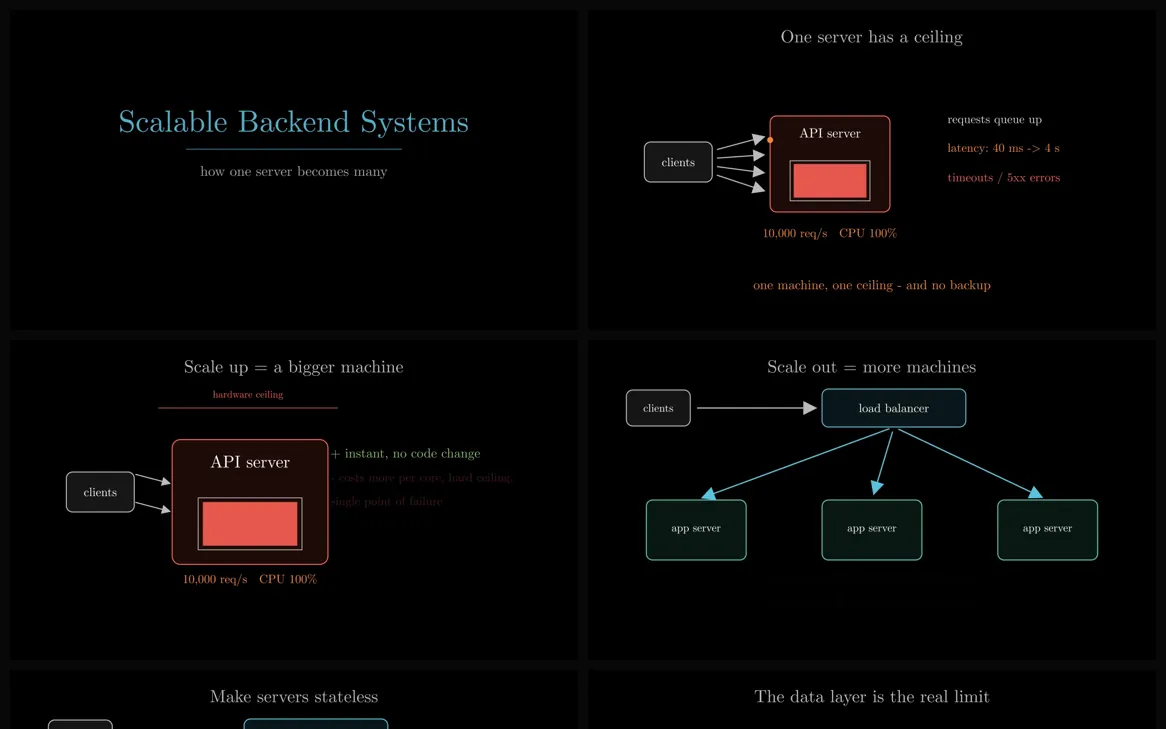
Animates the explainer. needs a big VM to render Real run · 10 Nov Your agent Working You: Boleh guna manimgx untuk explain scalable backend system? Guna VM besar.rendering on manimgx-render Agent: Siap. Video penerangan 74 saat.scalable-backend.mp4 · 1280×720
Its computer · manimgx-render · large Live
Frames from the video 74 s 10 / 10
Builds in Blender. needs Blender + a screen Real run Your agent Working You: Make a floating island in Blender and fly the camera around it.Agent: On it. Installing Blender on my computer.writing the scene script Agent: Done. Here’s the video.
Its computer · Blender Live
Screenshot from the run Blender Works with the agent you already use
TWO WAYS IN
Our agent, or the one you already pay for. Just the computer Bring your own agent Connect Claude Code, Codex, Cursor or Claude to our MCP server and your agent gets Linux VMs in your account. It creates them, runs commands, edits files and shares preview links.
Claude Code Codex Claude Cursor CLI
claude mcp add --transport http boxcompute https://mcp.boxcompute.ai/mcpMCP setup guide AI Your own agent’s plan Computer From $0.05/h of credit Agent + computer Ask in plain words. Get finished work. Our agent does the task on its own computer and sends you the result: an app to try, a video, a file, a link.
AI Free, up to a daily limit Computer From $0.05/h of credit Try our agent free Cool stuff Six setups to try in a sandbox, with step-by-step notes.
Share your build npx expo start --tunnelRun an Expo dev server Run Metro in the VM and connect your phone through an Expo tunnel.
Setup notes Create a networked VM and install your app’s Node dependencies. Install @expo/ngrok, then run npx expo start --tunnel for a compatible Expo Go or development-build client. Connect your device to that tunnel and keep iterating. Native iOS builds still need Apple’s build tooling or a separate build service.
Expo’s tunnel setup runs-on: self-hostedHost a GitHub Actions runner Run CI jobs in a VM with the dependencies your workflow needs.
Setup notes Create a VM with the resources and outbound access your workflow needs. Install and register GitHub’s self-hosted runner for a repository you control. Target its runner labels from your workflow and keep the VM running for the job. Use trusted workflows, keep runner credentials private, and remove the runner when finished. VM lifecycle and usage still apply.
GitHub’s runner setup SELECT current_database();Test against PostgreSQL Run migrations and seed data against a database inside your sandbox.
Setup notes Install PostgreSQL in a VM and initialize a development database. Create an application user, then run migrations and seed data. Connect your app inside the sandbox and test against real queries. This is a development setup. Export any data you need before deleting the workspace.
Run commands in a sandbox Local client → TCP → PostgreSQLConnect your database client Access a sandbox database from your local client when TCP access is enabled.
Setup notes Run your database with authentication in a networked VM. Enable the deployment’s selected TCP service-access workflow for that port. Use the provided connection details in your database client and close the access when finished. Selected TCP access is deployment-dependent. A web preview URL is for HTTP apps, not a PostgreSQL connection.
See the service-access API Build → Capture → ReviewSend screenshots to your agent Capture the UI and return the image to your existing agent for review.
Setup notes Connect your existing agent to BoxCompute through a supported integration. Run browser capture tooling in its sandbox, or use the app’s enabled computer tools. Read the saved image and return it through your agent’s image or artifact interface. Image delivery depends on the agent framework. The BoxCompute app displays its computer screenshots in chat and Files.
Find your integration Hermes → BoxCompute VMRun Hermes in a VM Try another agent runtime without installing it on your laptop.
Setup notes Create a networked VM and follow the documented Hermes setup. Configure your model provider inside the runtime. Run a task, inspect the results, and keep your project files together. Model-provider access is configured separately from sandbox compute.
Try the Hermes workflow 
 Your agentWorking